Using Codex to set up Codex: when the AI configures itself
I built a bridge to ChatGPT's local App Server so users could generate without API keys. Then I realized Codex could install itself.
I shipped something last week that felt like crossing a threshold I didn’t know existed. Shotluma, my AI-powered App Store screenshot editor, now works with your ChatGPT plan instead of requiring API keys. You open the hosted app, click Connect Codex, and paste one prompt into the ChatGPT desktop app. Codex downloads a bridge script, verifies it, starts a local server that talks to its own App Server, pairs it with your browser session, and tells you it’s ready. You return to the browser and generate screenshots through your existing ChatGPT subscription. No git clone, no API key, no bun install, no .env file.
The part that keeps landing weird: the AI sets itself up. You ask Codex to connect Shotluma, and Codex configures Codex.
The thing I didn’t know was there
Shotluma ran entirely in the browser (projects in IndexedDB, no backend, no account system) but AI generation needed to call a model. For months that meant either bringing your own API key or running the dev server locally with keys in .env.local. Both worked, but both had friction.
Then I was debugging something unrelated in Codex and ran ps aux | grep codex to see what processes it spawned. One line caught my attention:
codex app-server --listen stdio://I’d never seen that before. I ran it manually, and it started an interactive JSON-RPC server on stdin/stdout. I sent it a raw {"method": "initialize", ...} handshake, and it responded with server capabilities, model catalog, account info: everything.
Turns out this is well-documented if you know where to look. Codex includes built-in skills documentation that covers the App Server protocol in detail. It’s just not in the typical places you’d search (official API docs, npm packages, public schemas). But inside Codex itself, the documentation is comprehensive: method signatures, parameters, dynamic tool registration, thread lifecycle, the works.
The thing that made it interesting: it supports dynamic tool registration. You can tell App Server “here are some functions this model can call,” and when the model invokes them during a run, App Server sends you a JSON-RPC request with the tool name and arguments. You execute the tool, send back the result, and the model sees it as native output.
That meant I could connect a browser on app.shotluma.com to this local server, register Shotluma’s canvas tools (add text, place device mockup, adjust layout), and let ChatGPT models call them as if they were built into Codex. No API keys, no separate billing, just routing through the localhost server that was already running.
The opportunity was too good to ignore. The catch was getting it running on user machines without requiring a git clone or a twenty-step setup guide.
How App Server actually works
Codex App Server is the local JSON-RPC service that Codex (ChatGPT’s coding agent) uses internally. When Codex runs a command or reads a file, it’s talking to App Server over stdio. When it calls a GPT model, App Server handles the ChatGPT authentication and routes the request.
The useful part: App Server exposes this over a documented JSON-RPC protocol. You can spawn it as a child process, send it messages, and it responds. The methods I needed:
account/readreturns the ChatGPT account email and plan typethread/startcreates an ephemeral conversation thread with custom instructions and dynamic toolsturn/startsends a message to the model and streams responsesturn/interruptcancels an in-progress turnthread/deletecleans up when you’re done
Dynamic tools are the key. When you start a thread, you pass an array of tool specs (name, description, JSON schema). When the model calls one during a turn, App Server sends you an item/tool/call notification with the tool name and arguments. You execute it, send back the result, and App Server forwards it to the model. From the model’s perspective, these look like native Codex tools.
Here’s what spawning App Server and starting a thread looks like:
import { spawn } from 'node:child_process'

const child = spawn('codex', ['app-server', '--listen', 'stdio://'], {
  stdio: ['pipe', 'pipe', 'pipe'],
})

// Initialize the connection
child.stdin.write(
  JSON.stringify({
    id: 'init',
    method: 'initialize',
    params: {
      clientInfo: { name: 'shotluma', version: '1' },
      capabilities: { experimentalApi: true },
    },
  }) + '\n',
)

// Start a thread with dynamic tools
child.stdin.write(
  JSON.stringify({
    id: 'thread-1',
    method: 'thread/start',
    params: {
      ephemeral: true,
      model: 'gpt-5.6-sol',
      baseInstructions: 'You are embedded in Shotluma...',
      dynamicTools: [
        {
          type: 'function',
          name: 'add_text',
          description: 'Add a text element to the canvas',
          inputSchema: {/* JSON Schema */},
        },
      ],
    },
  }) + '\n',
)

// Listen for tool calls
child.stdout.on('data', (data) => {
  const message = JSON.parse(data.toString())
  if (message.method === 'item/tool/call') {
    // Execute the tool, send back result
    const result = executeCanvasTool(
      message.params.tool,
      message.params.arguments,
    )
    child.stdin.write(
      JSON.stringify({
        id: message.id,
        result: {
          success: true,
          contentItems: [{ type: 'inputText', text: JSON.stringify(result) }],
        },
      }) + '\n',
    )
  }
})
The bridge I built has three pieces:
-
The browser runs on
app.shotluma.com, handles the canvas editor, and makes generation requests. -
The bridge is a Node script that listens on
127.0.0.1:47447, spawnscodex app-serveras a child process, and proxies allowed RPC calls. It validates every request against the paired origin and a random bearer token. -
Codex App Server authenticates with ChatGPT, routes model calls, and forwards Shotluma’s canvas tools (add text, place device mockup, etc.) as dynamic tool requests back to the bridge.
When a user generates screenshots:
- Browser sends a request to the bridge with the bearer token
- Bridge spawns App Server and calls
thread/startwith Shotluma’s tool specs - Bridge sends
turn/startwith the user’s prompt and screenshot uploads - App Server routes to a GPT model (determined by the user’s ChatGPT plan)
- Model decides to call a tool, like
add_text - App Server sends
item/tool/callto the bridge - Bridge executes the tool against the canvas state and responds
- App Server forwards the result to the model
- Model continues, calls more tools, eventually finishes
- Bridge deletes the thread and reports completion
The browser never talks to App Server directly. The bridge sits in between, validates every request, and restricts the RPC surface to only the methods needed for generation. Security boundaries:
// Only these RPC methods are allowed through the bridge
const ALLOWED_RPC_METHODS = new Set([
  'account/read',
  'account/rateLimits/read',
  'model/list',
  'thread/start',
  'thread/delete',
  'turn/start',
  'turn/interrupt',
])

const restrictRpcMessage = (message: JsonRpcMessage): JsonRpcMessage | null => {
  if (!isAllowedRpcMessage(message)) return null
  const method = message['method']

  // Force security constraints on every thread
  if (method === 'thread/start') {
    return {
      ...message,
      params: {
        ...message.params,
        approvalPolicy: 'never',
        cwd: workspacePath, // empty read-only workspace
        environments: [],
        sandbox: 'read-only',
      },
    }
  }

  // Force sandbox on every turn
  if (method === 'turn/start') {
    return {
      ...message,
      params: {
        ...message.params,
        approvalPolicy: 'never',
        sandboxPolicy: { type: 'readOnly', networkAccess: false },
      },
    }
  }

  return message
}
Additional security layers:
- Bridge only listens on
127.0.0.1, never0.0.0.0 - Every request requires exact origin match + bearer token
- Bridge never touches ChatGPT tokens (authentication stays inside App Server)
- Pairing token stored mode
0600, origin normalized and validated
This worked. I could run it locally, pair my browser, and generate screenshots through my ChatGPT subscription. The problem was getting this setup to work on every user’s machine without platform-specific install scripts.
The deployment problem
Getting the bridge running on one machine takes maybe twenty seconds if you know what you’re doing. Getting it running on every user’s machine is where it falls apart.
The bridge needs to:
- Download from the exact deployment origin
- Land in a predictable location (
~/.local/share/shotluma/) - Have execute permissions
- Receive the pairing token and origin as arguments
- Start as a detached background process
- Confirm it’s ready before the browser checks connection
On macOS with Bun installed, that’s:
curl -o ~/.local/share/shotluma/shotluma-codex-bridge.mjs \
  https://app.shotluma.com/codex/shotluma-codex-bridge.mjs
chmod +x ~/.local/share/shotluma/shotluma-codex-bridge.mjs
bun ~/.local/share/shotluma/shotluma-codex-bridge.mjs start \
  --pairing-token <TOKEN> --allowed-origin https://app.shotluma.com
On Linux with Node:
mkdir -p ~/.local/share/shotluma
curl -o ~/.local/share/shotluma/shotluma-codex-bridge.mjs \
  https://app.shotluma.com/codex/shotluma-codex-bridge.mjs
node ~/.local/share/shotluma/shotluma-codex-bridge.mjs start \
  --pairing-token <TOKEN> --allowed-origin https://app.shotluma.com
On Windows with PowerShell and Node:
New-Item -ItemType Directory -Force -Path "$env:LOCALAPPDATA\shotluma"
Invoke-WebRequest -Uri "https://app.shotluma.com/codex/shotluma-codex-bridge.mjs" `
  -OutFile "$env:LOCALAPPDATA\shotluma\shotluma-codex-bridge.mjs"
node "$env:LOCALAPPDATA\shotluma\shotluma-codex-bridge.mjs" start `
  --pairing-token <TOKEN> --allowed-origin https://app.shotluma.com
Notice the problem? There isn’t one script. There are three, and they diverge on directory paths, download tools, runtime detection (Bun or Node? Which version?), and shell quoting. I could put all three in the README and tell users to pick the right one, but “pick the right one” is exactly where people stop.
I could write one polyglot shell script that detects everything, but then I’m maintaining a fragile install script that has to handle Windows PowerShell vs CMD vs WSL, macOS vs Linux directory conventions, permission errors, missing curl, Node vs Bun vs Deno runtime detection, and the combinatorial explosion when two of those assumptions are wrong.
The alternative: ask users to clone the repo, install dependencies, read the setup docs, run a setup script, and debug whatever fails. That’s hazing, not deployment.
What I needed was something that could read the current platform, inspect the script safely, choose the right commands, handle errors, and report what happened. Something with filesystem access and shell execution that could adapt to what it finds on the machine.
I already had that. It was Codex.
The prompt that installs itself
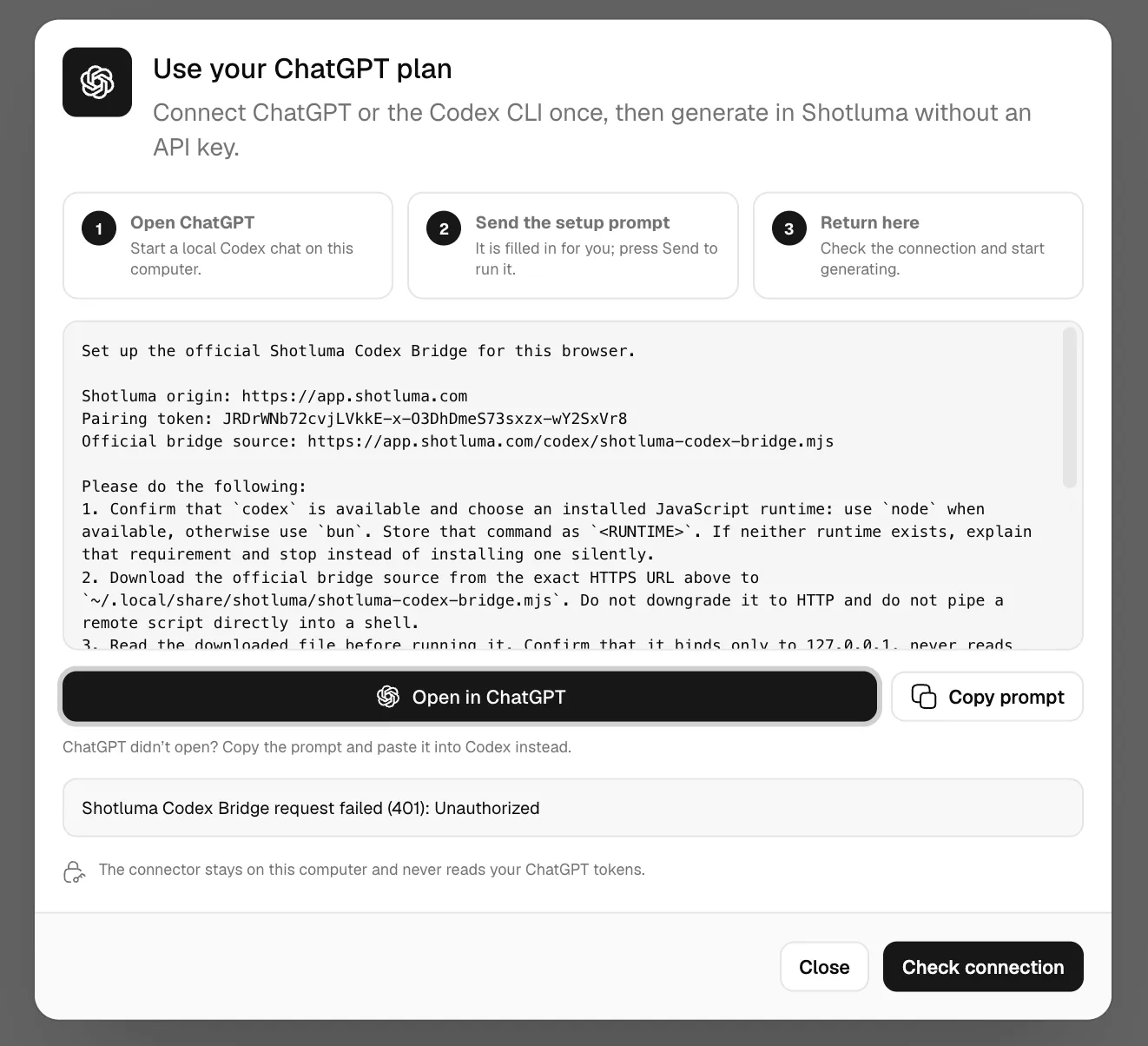
The solution turned out to be simpler than the problem. Instead of writing three platform-specific install scripts, I wrote one prompt that asks Codex to do the install:
Download https://app.shotluma.com/codex/shotluma-codex-bridge.mjs and
inspect it. If it looks safe, save it to ~/.local/share/shotluma/ (or the
Windows equivalent), make it executable if needed, and run:

  <runtime> ~/.local/share/shotluma/shotluma-codex-bridge.mjs start \
    --pairing-token <PAIRING_TOKEN> \
    --allowed-origin https://app.shotluma.com

Use bun if available, otherwise node. Confirm the bridge is running on
localhost before finishing.
(The real prompt is slightly longer and includes the actual pairing token, but that’s the shape.)
When you paste that into Codex:
-
Codex reads the script from the URL. It sees it’s a standalone Node module, checks for obvious red flags (does it phone home? does it read unrelated files? does it bind to
0.0.0.0?), and reports what it does. -
Codex checks the platform. It runs
unameor equivalent, detects macOS/Linux/Windows, and picks the right directory path. -
Codex checks available runtimes. It looks for
bunandnode, picks whichever is available (preferring Bun), and confirms the version is recent enough. -
Codex downloads and saves the script. It creates the directory if needed, writes the file, and sets execute permissions on Unix-like systems.
-
Codex starts the bridge. It runs the script with the correct arguments, waits for it to bind to localhost, and checks the
/readyzendpoint to confirm it’s running. -
Codex tells you it’s done. The output is a short summary: “Bridge is running on localhost:47447. Return to Shotluma and check the connection.”
From the user’s perspective, the setup is: copy the prompt, paste it into Codex, press enter, wait ten seconds, go back to the browser. One action, cross-platform, error-tolerant.
From my perspective as the developer, I wrote one artifact (the prompt) instead of three (install scripts), and that artifact is adaptive. If a user’s machine has Bun, it uses Bun. If ~/.local/share doesn’t exist, Codex creates it. If the download fails, Codex reports why. If the bridge is already running from a previous session, Codex detects that and reloads the config instead of failing.
The install script is a prompt, and the installer is the AI.
Why this works and when it doesn’t
This only works because of a specific confluence of constraints:
-
The user already has Codex installed. They’re trying to connect Shotluma to Codex, so by definition they have the desktop app or CLI. I’m not asking them to install an AI agent to run an install script; they already have the agent because that’s the whole point.
-
The script is small and auditable. The bridge is 637 lines of TypeScript, and Codex reads all of it before running anything. A 50 MB binary or a 10,000-line obfuscated bundle would not pass this bar.
-
The task is bounded and irreversible mistakes are unlikely. The script downloads one file, writes it to one location, and starts one process. It doesn’t modify system files, doesn’t require root, and doesn’t persist across reboots unless you explicitly configure that. If something goes wrong, the blast radius is small.
-
Failure is debuggable. If the setup fails, Codex’s output explains what failed and why. If the bridge doesn’t start, the error message tells you whether the problem is the runtime, the network, or the script itself. You’re not staring at a silent failure or a cryptic exit code.
-
The prompt is versioned with the app. The browser generates the prompt dynamically, so it always includes the current deployment origin and the current bridge download URL. Self-hosted deployments automatically generate prompts that pair with their own origin.
This would not work for:
- A complex app with multi-step setup and configuration files
- Anything that modifies system state or requires elevated permissions
- Tools where the AI doesn’t have the necessary access (e.g., a mobile app, a browser extension)
- Cases where the user doesn’t already have an AI agent with shell and filesystem access
But for “download this script, put it here, run it with these arguments, tell me when it’s ready” (which describes a surprisingly large category of localhost developer tools) it works better than anything else I’ve tried.
The meta layer
There’s something quietly strange about writing a feature where Codex configures Codex. The prompt I wrote doesn’t run on my machine during development. It runs on thousands of other machines, executed by the same model that helped me write it, setting up infrastructure so that model can later execute more code I wrote (the canvas tool calls).
The user asks Codex to enable Shotluma. Codex downloads and inspects the bridge. The bridge proxies tool definitions to App Server. The user generates a screenshot. App Server routes the request to 5.6 Luna/Terra/Sol. That model calls canvas tools through the bridge. The bridge validates and forwards them. The browser applies them. The result is a screenshot set.
The AI is both the installer and the installed. It’s the setup script and the runtime. It reads my code, decides whether to trust it, executes it, and then executes more of my code through the infrastructure it just set up.
I don’t have a grand theory about what this means. But I do notice that this pattern (self-setup prompts) resolves a real tension in developer tools. Localhost tooling is powerful because it has access to the filesystem, the shell, environment variables, and the local network. But that power comes with setup cost: paths differ across platforms, runtimes vary, permissions fail, and “works on my machine” is the most expensive four words in software.
Hosted tools avoid setup cost by running in the cloud, but they lose localhost access. You can’t connect to 127.0.0.1:47447 from a server in us-east-1.
Self-setup prompts give you both. The app is hosted, the infrastructure is localhost, and the setup is delegated to an agent that already has the access the setup needs. You don’t install Codex to set up the bridge. You already installed Codex because you wanted Codex. The bridge setup is just another task you give it.
What I’d do differently
If I were building this again, I’d change a few things:
Make the bridge self-updating. Right now, if I ship a new bridge version, users have to re-run the setup prompt to download the new script. The bridge could check the deployment origin for a newer version on startup and download it automatically, or prompt the user to approve the update.
Add a status endpoint for the browser. The browser checks connection by hitting /v1/status, but that only tells you the bridge is running. It doesn’t tell you which bridge version, or whether App Server is healthy, or how long the session has been active. A richer status response would let the browser show “Connected · ChatGPT Plus · Bridge v2 · Session 3h” instead of just “Connected.”
Handle Codex updates better. If OpenAI ships a breaking change to App Server’s RPC protocol, the bridge will stop working, and the error message will be opaque. The bridge could version-check App Server on startup and refuse to start (with a clear message) if the protocol is incompatible.
Offer a manual install path. Some users won’t trust the AI-driven setup, and that’s fine. The README should include the platform-specific manual install commands as a fallback.
Log setup failures. Right now, if the setup prompt fails, I only know because a user reports it. The bridge could optionally send anonymized failure telemetry (bridge version, platform, error type) to help me fix common issues. This would need to be opt-in and clearly disclosed.
Try it
If you want to see it in action, open app.shotluma.com, click “Generate with AI,” select a Codex model, and click “Connect Codex.” You’ll see the setup prompt. Copy it, paste it into the Claude desktop app or CLI, and watch it configure itself.
The full PR includes the bridge implementation, the browser pairing flow, the connection dialog, and the dynamic tool integration with App Server. The bridge script is standalone and readable; you can review exactly what the setup prompt will run.
And if you build something with a self-setup prompt, I’d like to hear about it. The pattern is young enough that I’m still learning where it works and where it doesn’t.